These terms are an agreement between you and XTO Pty Ltd (ACN 702 801 410) of L1 457 Elizabeth Street, Surry Hills, NSW 2010, Australia ("owns.ai", "we", "us"), the company that owns and operates owns.ai, for the use of owns.ai. By creating an account or using the service you agree to them. If you are accepting on behalf of a business, you confirm you are authorised to bind it.
1. The service
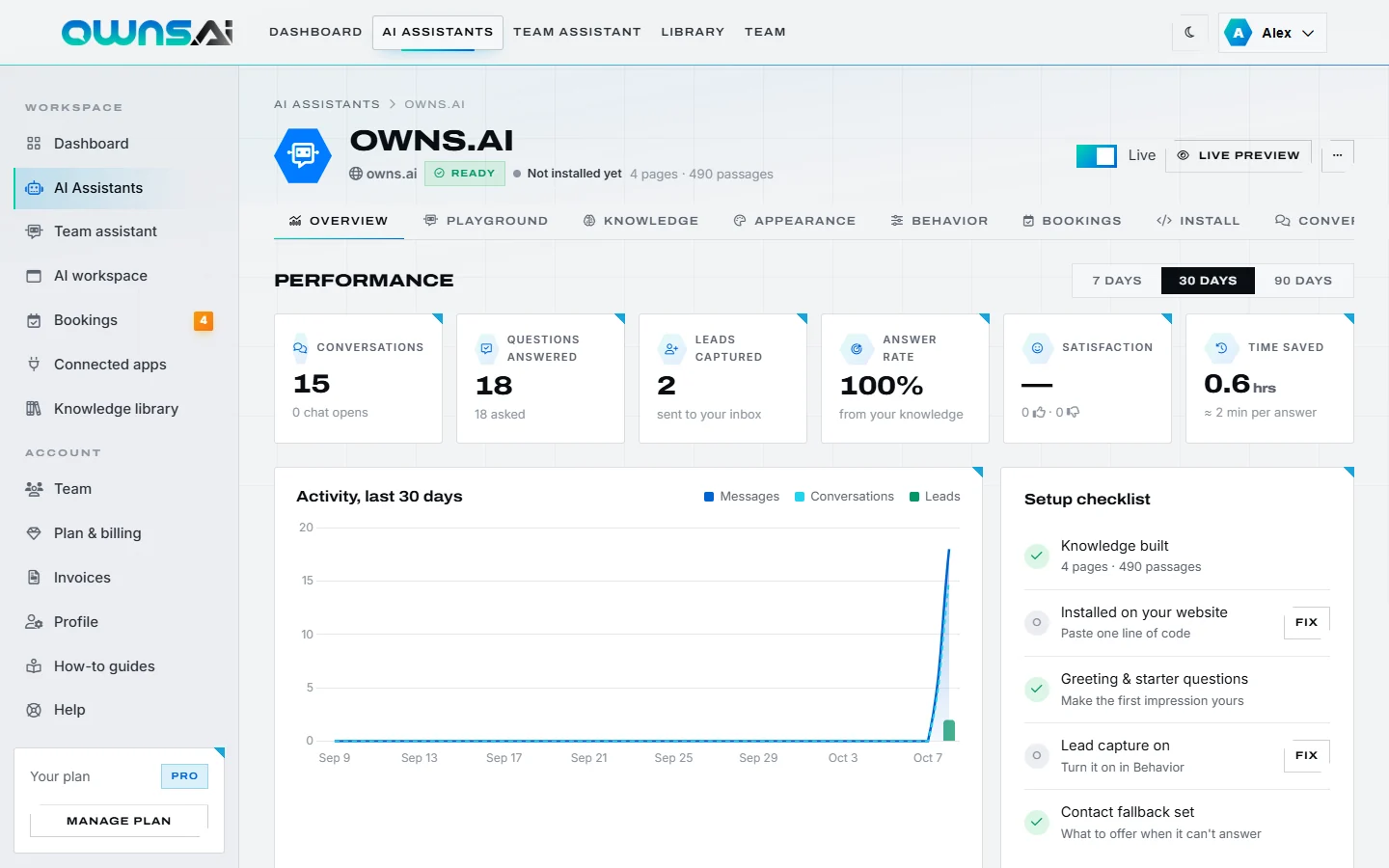
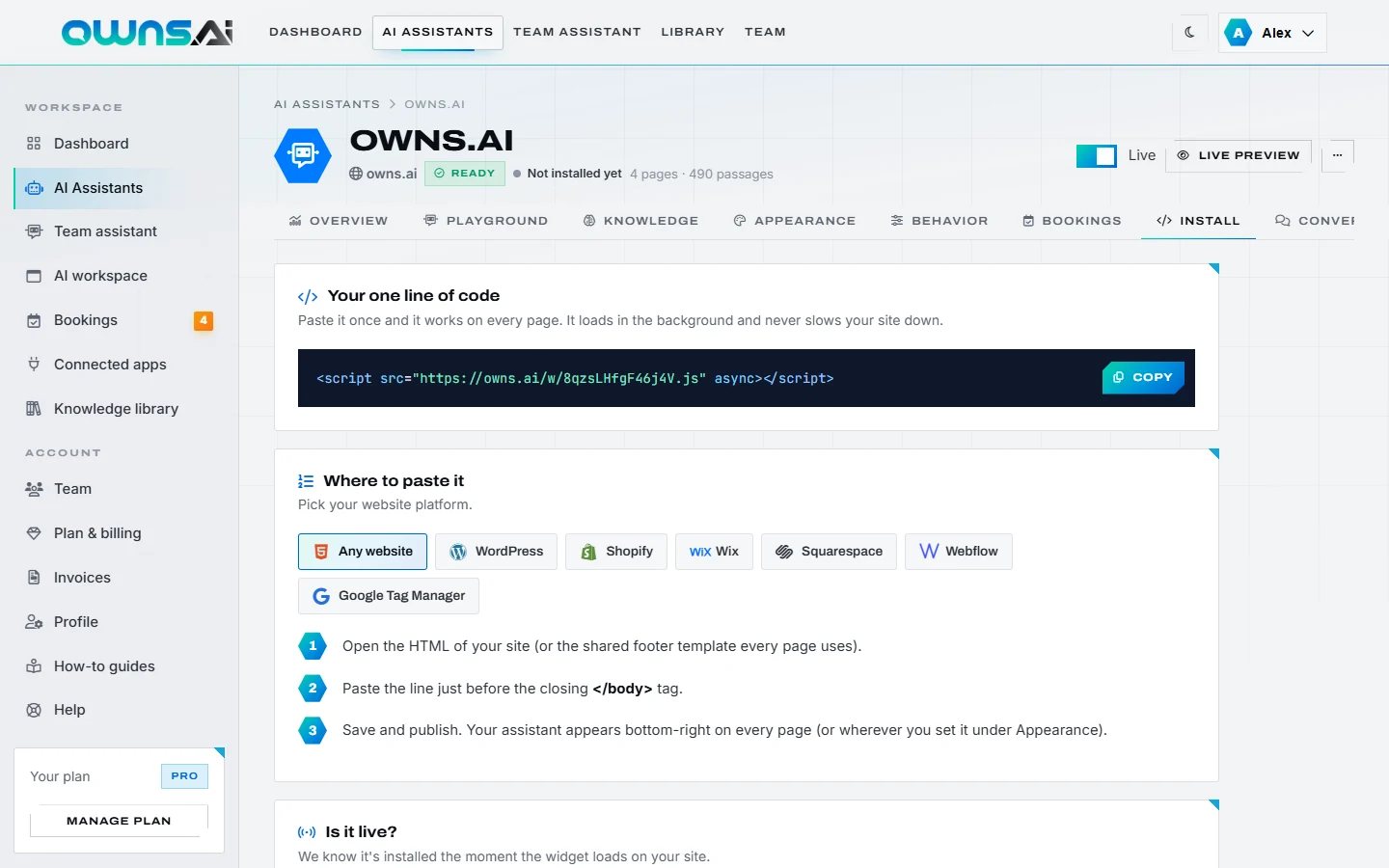
owns.ai builds AI chatbot assistants from the websites you point it at, hosts those assistants, and provides an embed code, a dashboard, analytics and related features. Features and limits depend on your plan as described on our pricing page.
2. Your account
Keep your sign-in details secure and tell us promptly about any unauthorised use. You are responsible for activity on your account. You must give accurate information and be at least 18.
Teams. The account owner may invite team members, who receive their own sign-in. The owner is responsible for their team's use of the service, manages billing, and decides who is an admin. Admins may manage assistants, documents and team members. Seats are limited by your plan. A member who leaves or is removed keeps their login as a separate free account; the business keeps the assistants and shared documents.
3. Plans, trials and billing
- Paid plans are subscriptions billed in advance, monthly or yearly, through PayPal, in the currency shown at checkout.
- A paid plan may begin with a free trial (currently 7 days). One free trial per account. If you don't cancel before the trial ends, the subscription begins and you are billed automatically.
- Subscriptions renew automatically at the end of each period until cancelled.
- If a payment fails, PayPal will retry. If payment still can't be collected, the subscription may be suspended and your account moved to the Free plan.
- Prices may change. A change never affects a period you've already paid for, and existing subscriptions keep their price unless we give you at least 30 days' notice.
- Prices exclude taxes unless stated; you are responsible for any taxes that apply.
4. Changing plans and cancelling
You can change plan or cancel at any time from Plan & billing (or from your PayPal account). When you cancel, you keep your paid features until the end of the current paid period, after which your account moves to the Free plan; your assistants and their knowledge are kept within Free plan limits, and assistants beyond the Free allowance are paused rather than deleted. When you move to a new paid plan, your previous subscription is cancelled.
5. Refunds
Because every paid plan can be tried free first, payments are non-refundable and partial periods are not refunded, except where the law requires otherwise or where we decide to make an exception.
6. Usage limits
Each plan includes limits on assistants, monthly visitor messages, pages learned and other features. When a monthly message limit is reached, your assistants show visitors your contact details instead of answering until the next month or until you upgrade.
7. Your content and websites
- You may only build assistants from websites you own or are authorised to use for this purpose, and you authorise us to access, render, copy and process their content to provide the service.
- You keep ownership of your content. You grant us a licence to host, process and display it solely to provide and improve the service for you.
- You may only upload documents you have the right to use this way. You choose each document's access level; documents marked public may be used by your website assistant to answer anyone who visits your site.
- You are responsible for your content, your documents, your custom answers and instructions, and for having a lawful basis and any notices required to use the assistant with your website's visitors (for example in your own privacy policy).
8. AI answers
Assistants generate answers automatically using AI. Although they are designed to answer only from your information, they can make mistakes, misunderstand questions or present information out of context. You are responsible for reviewing your assistant's knowledge and answers, for keeping your website and custom answers accurate, and for any decisions or promises made to your customers. Do not use an assistant to give medical, legal, financial or other professional advice, or for any decision with legal or similarly significant effects on a person without human review.
9. Acceptable use
You must not use owns.ai to: break any law; infringe anyone's rights; build assistants from sites you're not authorised to use; distribute malware or spam; deceive people into believing they're talking to a human where that is unlawful; collect sensitive information unlawfully; probe, overload or circumvent the service's security or limits; or resell the service without our written agreement. We may suspend assistants or accounts that breach these terms.
10. Our intellectual property
The owns.ai service, software, widget, design and brand are ours or our licensors'. These terms don't transfer any of it to you, except the right to use the service as described.
11. Availability and changes
We work hard to keep owns.ai available but don't guarantee uninterrupted service. We may change or improve features; if we remove a material feature from a paid plan, we'll give notice and you may cancel.
12. Disclaimers and limitation of liability
To the extent permitted by law, the service is provided "as is" without warranties of any kind, and we are not liable for indirect, incidental, special or consequential losses, lost profits or lost data. Our total liability for any claim relating to the service is limited to the amount you paid us in the 12 months before the claim. Nothing in these terms limits liability that cannot be limited by law, including rights you have under consumer protection laws.
13. Termination
You may close your account at any time from your profile. We may suspend or terminate accounts that breach these terms or that we're required to close by law. On termination, your right to use the service ends; sections that by their nature should survive will survive.
14. Governing law
These terms are governed by the laws of New South Wales, Australia, and you and we submit to the non-exclusive jurisdiction of the courts of New South Wales, unless the law of your country gives you the right to bring proceedings where you live. Nothing in these terms excludes any right you have under the Australian Consumer Law or other consumer protection laws that cannot be excluded.
15. Changes to these terms
We may update these terms. For material changes we'll email account holders at least 14 days before they take effect. Continuing to use owns.ai after that means you accept the updated terms.
16. Contact
XTO Pty Ltd (ACN 702 801 410)
L1 457 Elizabeth Street, Surry Hills, NSW 2010, Australia
[email protected]